
Your WordPress Website Is Broken After an Update. Now What?
WordPress Problems Explained | Eliyahna Creative
Your website was working perfectly yesterday. Today, something is broken.
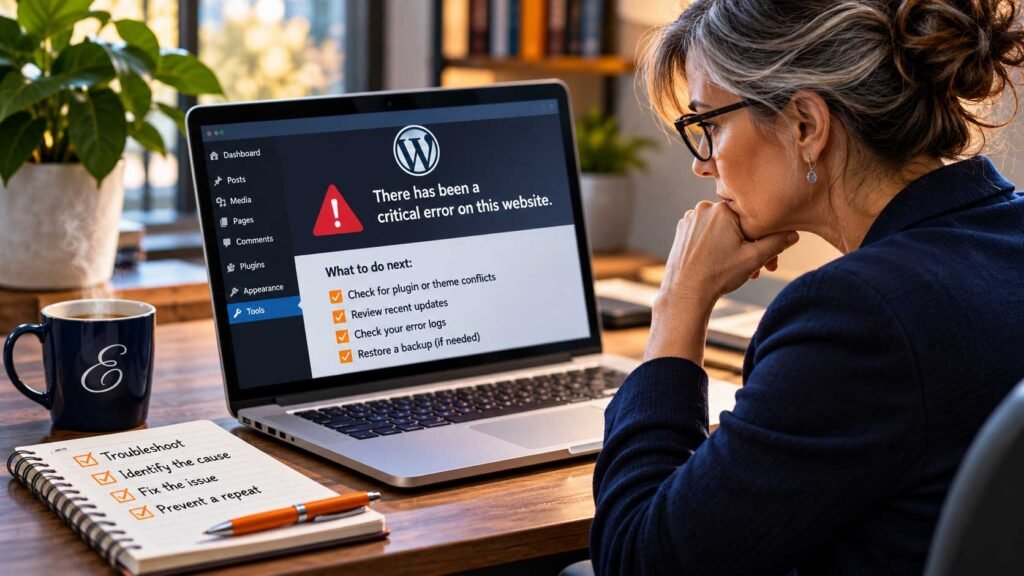
Maybe your homepage is displaying incorrectly. Your contact form has stopped sending notifications. A plugin has disappeared, your navigation menu doesn’t work, or visitors are seeing the dreaded message:
“There has been a critical error on this website.”
And the only thing you remember doing was clicking Update.
It’s a frustrating experience, especially when your website is responsible for bringing in customers, collecting inquiries, processing purchases, or supporting your daily business operations.
But here’s something important to understand:
A broken WordPress website doesn’t automatically mean you need a new website.
Sometimes the solution is relatively straightforward. Other times, the problem requires investigation into your website’s PHP environment, plugin dependencies, theme code, database, or server configuration.
The important thing is to identify what actually broke before attempting to repair it.
Let’s look at what can happen after a WordPress update, how to respond safely, and when it’s time to call someone who understands what’s happening behind the scenes.
Why Do WordPress Websites Break After Updates?
WordPress is not a single piece of software operating independently.
A typical business website consists of several interconnected components:
WordPress core, which provides the underlying content management system.
A theme that controls much of the website’s presentation.
Plugins that add functionality, integrations, security features, forms, and other capabilities.
PHP, the server-side programming language WordPress uses.
A database that stores website content and configuration.
Web server software, caching systems, and sometimes a content delivery network (CDN).
These components work together, but they aren’t always developed or updated by the same people.
An update to one component can reveal an incompatibility with another.
For example, a plugin may depend on a function that has changed, a theme may contain outdated code, or a newer PHP version may expose programming errors that were previously unnoticed.
That doesn’t mean WordPress updates are inherently bad. Updates are essential for security, compatibility, stability, and access to new functionality.
The problem isn’t updating your website. It’s updating without understanding the dependencies and having a reliable recovery plan.
1. Your Website Displays a Critical Error
One particularly alarming WordPress message is:
“There has been a critical error on this website.”
This commonly appears when WordPress encounters a fatal PHP error.
The problem may originate in a plugin, a theme, custom code, or an incompatibility with the server environment.
In certain circumstances, WordPress can detect the fatal error and send a message to the website administrator containing information about the problem and a special recovery link.
What Is WordPress Recovery Mode?
WordPress Recovery Mode is a built-in feature designed to help administrators regain access after certain fatal errors.
If WordPress detects a qualifying issue involving a plugin or theme, Recovery Mode may allow you to access the dashboard with the affected component paused for that recovery session.
From there, you can investigate the problem and take corrective action.
However, Recovery Mode is not a universal repair tool.
It doesn’t fix every PHP error, restore damaged database tables, or guarantee recovery from every failed update.
What should you do?
First, check the email address associated with your WordPress administrator account, including your spam folder, for a recovery message.
If you receive one, examine the information carefully before making changes.
If you don’t receive an email, don’t assume the error is impossible to diagnose. Server error logs and additional troubleshooting methods may still reveal the cause.
2. A Plugin Update Breaks Your Website
Plugins are one of WordPress’s greatest strengths.
They’re also a frequent source of compatibility problems.
A plugin can work correctly for months or years and then encounter an issue after an update to WordPress, PHP, another plugin, or the theme.
Common symptoms include:
Buttons that suddenly stop responding.
Contact forms that fail to submit.
Page layouts that display incorrectly.
Missing website features.
Errors in the WordPress dashboard.
Unexpected behavior in integrations or custom functionality.
Sometimes the website continues to display normally while critical functions are broken.
That last situation can be particularly dangerous for a business.
A broken contact form might mean losing inquiries without realizing it.
How Are Plugin Conflicts Diagnosed?
Developers generally begin by reproducing the problem and investigating recent changes.
Depending on the symptoms, troubleshooting may involve examining PHP error logs, checking the browser’s JavaScript console, reviewing plugin compatibility, and isolating suspected components.
A controlled process of deactivating and reactivating plugins can help identify conflicts.
However, randomly disabling plugins on a live business website is not a good troubleshooting strategy.
Disabling the wrong plugin could interrupt payment processing, customer communications, security controls, or another essential service.
Whenever possible, compatibility testing should take place on a staging copy of the website rather than the live production site.
The objective isn’t simply to make the visible error disappear.
It’s to restore normal functionality without creating additional problems.
3. Your Website Looks Broken, but Nothing Has Actually Disappeared
Not every WordPress problem is caused by a fatal error.
Sometimes the underlying website is functioning correctly, but its appearance has changed.
You might notice:
Missing fonts or unexpected typography.
Images appearing in the wrong position.
Navigation menus overlapping page content.
Missing colors or styling.
Pages that look correct on desktop but broken on mobile.
Layouts that display differently between browsers.
These problems may involve CSS, JavaScript, caching, or the order in which resources load.
For example, an optimization setting may delay a stylesheet that normally controls the appearance of an important page element.
The browser initially displays the element without its intended styling, then adjusts the layout when the stylesheet becomes available.
To a visitor, it can appear as though the page is jumping, flashing, or rebuilding itself.
Why Clearing the Cache Doesn’t Always Fix It
Caching stores reusable website resources so they can be delivered more efficiently.
But clearing the cache is not the same as repairing the underlying problem.
If a CSS rule is incorrect, an optimization setting is incompatible, or a script executes at the wrong time, clearing the cache may simply cause the browser to download the same broken behavior again.
A developer may need to examine the browser’s network requests, computed styles, loading sequence, and relevant WordPress configuration to determine the actual cause.
A faster website isn’t an improvement if it no longer works correctly.
Performance optimization and visual stability should go hand in hand.
4. Your Contact Form Stops Working
A contact form is one of the most important features on many business websites.
Unfortunately, form problems aren’t always obvious.
A visitor might click Submit and see a confirmation message, while the expected email notification never arrives.
Or the form may refuse to submit because of a JavaScript error, security restriction, plugin conflict, or server-side failure.
These are different problems requiring different solutions.
A Successful Message Doesn’t Always Mean a Successful Email
When troubleshooting contact forms, it’s important to distinguish between three events:
The browser successfully submits the form.
WordPress processes and accepts the submission.
The notification email is successfully delivered to its intended mailbox.
One event doesn’t automatically prove the others.
Problems can occur in WordPress email configuration, SMTP services, DNS authentication, spam filtering, or the form’s notification settings.
For a business, testing the entire process matters.
That means submitting a real test inquiry, verifying the response, and confirming that the message reaches the correct inbox.
A visually attractive form has little value if customer inquiries never reach you.
5. Your Website Breaks After a PHP Update
PHP is the programming language responsible for much of WordPress’s server-side functionality.
Like WordPress itself, PHP evolves.
New versions introduce performance improvements, security updates, and changes to language behavior.
Older plugins, themes, or custom code may not always be compatible with newer versions.
As a result, a hosting environment update can reveal problems that weren’t previously visible.
For example, outdated code may call a function that no longer exists or use programming patterns that are no longer supported.
Should You Downgrade PHP?
Not automatically.
Temporarily reverting a version may be useful in a controlled recovery situation, but relying indefinitely on unsupported software introduces security and maintenance risks.
The better long-term approach is to identify incompatible components and update, repair, or replace them appropriately.
A developer can investigate the error messages, determine which code is responsible, and assess the safest path to restoring compatibility.
6. What Should You Do Immediately When Your WordPress Website Breaks?
Before changing settings or disabling components, follow a controlled recovery process.
Step 1: Identify What Is Actually Broken
Can you access the homepage?
Does the WordPress dashboard still work?
Are all pages affected, or only one?
Is the problem visible on mobile devices, desktop computers, or both?
Does it happen only when submitting a form, opening a menu, or performing a specific action?
The more precisely you describe the problem, the easier it becomes to investigate.
Step 2: Document the Symptoms
Take screenshots of errors.
Write down the approximate time the problem started.
Record which updates or configuration changes occurred shortly beforehand.
If possible, preserve the exact wording of any error messages.
These details can make a significant difference during troubleshooting.
Step 3: Protect Your Website Data
Before making further changes, determine whether you have a reliable backup.
A usable backup should include the database and relevant website files.
If you’re unsure whether a backup is complete, don’t assume it is.
Avoid overwriting your only known-good copy or restoring an old backup without considering newer orders, inquiries, content, or other data that might be lost.
Step 4: Check for a WordPress Recovery Email
If the problem involves a fatal error, look for WordPress’s recovery notification.
The email may identify an affected plugin or theme and provide a way to regain administrative access.
Step 5: Avoid Making Several Changes at Once
Changing multiple settings simultaneously makes it harder to determine what caused the problem and which change resolved it.
A controlled troubleshooting process tests one hypothesis at a time and records the result.
Step 6: Know When to Stop
If your website handles purchases, customer information, bookings, or other essential business activities, experimenting on the live website can create additional risks.
At that point, involving an experienced developer is often the safer decision.
7. Why Restoring a Backup Isn’t Always the Complete Solution
A backup is an essential recovery tool, but restoring one doesn’t necessarily eliminate the original cause.
Suppose a plugin update introduces an incompatibility.
Restoring the website to its earlier state may bring it back online.
But what happens when the same update is attempted again?
If the incompatibility hasn’t been resolved, the problem may return.
The same principle applies to PHP compatibility issues, incorrect configuration, and certain caching problems.
An effective repair process answers two questions:
What caused the failure?
What needs to change to prevent that failure from recurring?
A backup can restore the previous state. A proper diagnosis helps explain why the failure occurred.
Both are important.
8. When Should You Hire a WordPress Developer?
You don’t need a developer for every minor WordPress inconvenience.
However, professional troubleshooting is worth considering when:
Your website is inaccessible or displays fatal errors.
An important business feature has stopped working.
You suspect a plugin or theme conflict.
Your forms, checkout, or integrations are failing.
Your website repeatedly breaks after updates.
Error messages refer to PHP functions or server configuration.
You don’t have a safe environment for troubleshooting.
You’ve already tried obvious fixes without identifying the cause.
The right developer should investigate the actual problem rather than immediately recommend a complete redesign.
In many situations, targeted troubleshooting or a carefully scoped repair is more appropriate than rebuilding an otherwise functional website.
You May Not Need a New Website. You May Just Need the Right Fix.
At Eliyahna Creative, I work directly with business owners who need practical WordPress development and technical solutions.
With more than 20 years of experience in web development, I understand that a website is more than its appearance.
It’s a working system that your business depends on.
That’s why I’ve introduced fixed-price WordPress technical services designed to help identify and resolve problems without automatically committing to a complete redesign or an ongoing agency contract.
Services include WordPress troubleshooting, plugin and theme conflict repair, performance audits, website health checks, migrations, and custom development.
WordPress Troubleshooting starts at $149, with additional services available according to the scope of work.
Whether your website is displaying an error, running slowly, or simply behaving in a way it shouldn’t, the first step is understanding what’s wrong.
Is Your WordPress Website Giving You Trouble?
You don’t necessarily need to start over.
Get experienced technical help identifying the problem and determining the right solution.
Explore WordPress Technical Services
Or contact me directly and tell me what’s happening with your website.
Eliyahna Creative — practical web development, WordPress troubleshooting, and custom technical solutions.